Managing access
Fine-tune what each teammate can reach — which sections they can open, which shops they can work in, and how to suspend or remove them.
Once someone is on the team, the owner manages them from the ⋮ menu on their member card.
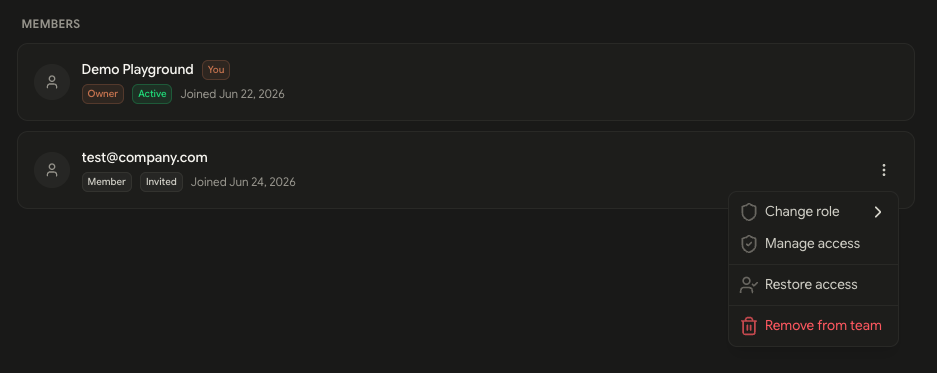
The menu has everything you need to adjust a member:
- Change role — Switch the member to a different role.
- Manage access — Choose which sections they can open (below).
- Manage shops — In Agency workspaces, choose which shops they can work in (below).
- Suspend access / Restore access — Temporarily block or restore a member.
- Remove from team — Take them off the team entirely.
Page access
Manage access controls which sections of the app a member can open. Toggle each section on or off, or use Select all, then click Save access.
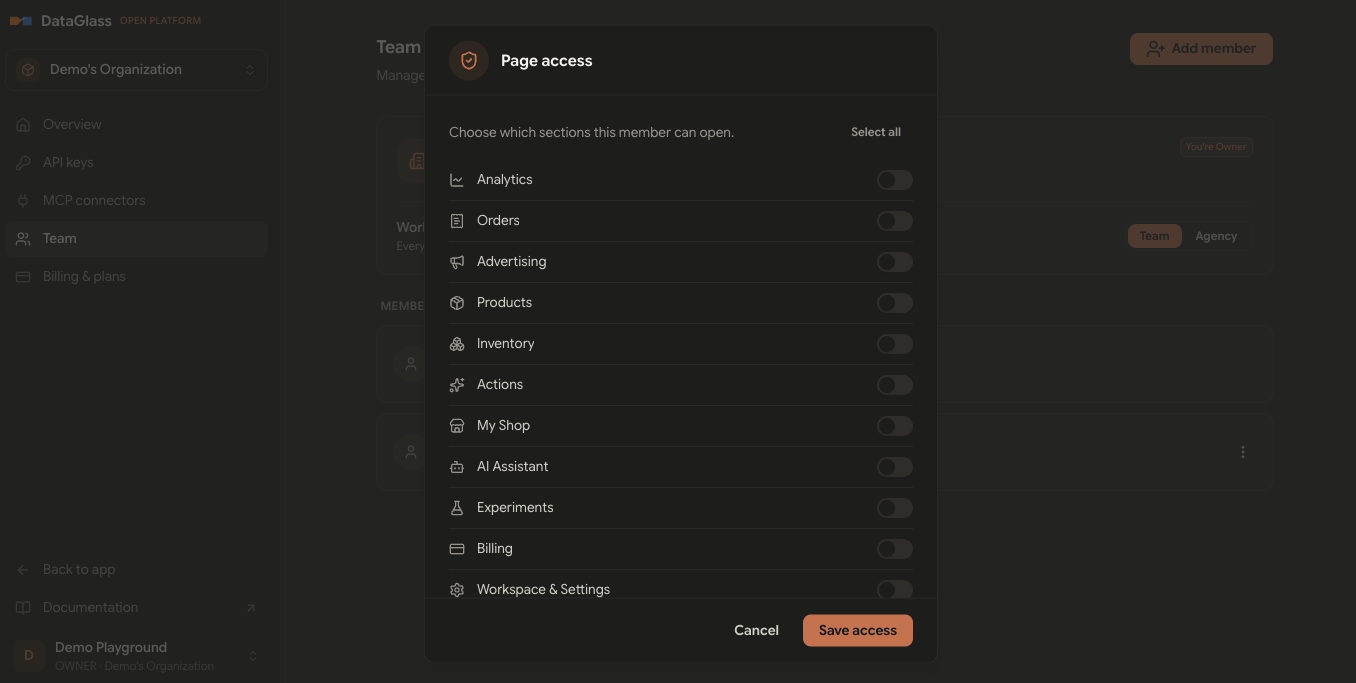
Sections you can grant include Analytics, Orders, Advertising, Products, Inventory, Actions, My Shop, AI Assistant, Experiments, Billing, and Workspace & Settings.
Owners and admins can always reach every section, so page access only applies to managers, members, and viewers.
Shop access
In an Agency workspace, Manage shops controls which shops a member can work in. Toggle each shop on or off — changes save as you go, then click Done.
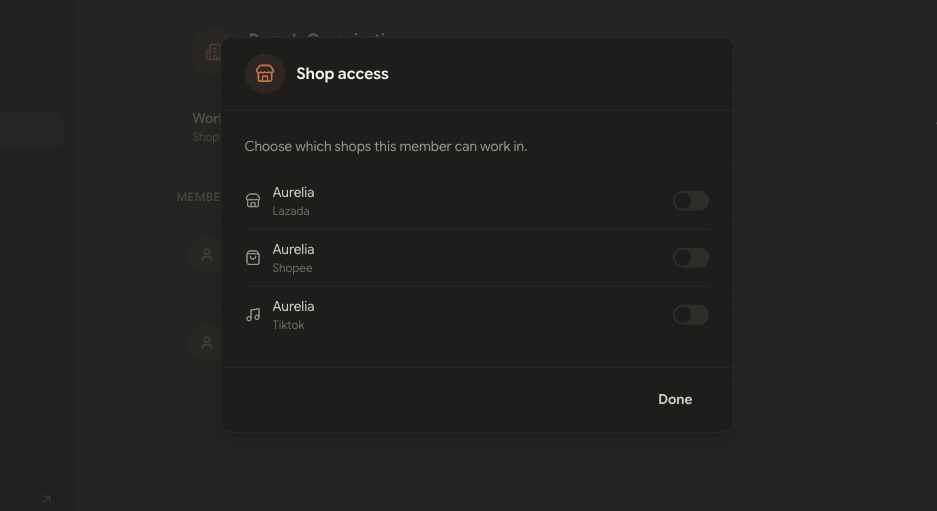
Shop access only appears in Agency workspaces. In Team mode everyone already shares every shop, so there's nothing to assign.
Suspending and removing
- Suspend access temporarily blocks a member and signs them out immediately. They keep their place on the team — use Restore access to let them back in.
- Remove from team takes the member off entirely. They lose access to the team's shops and are moved to their own personal organization. You can re-add them later.
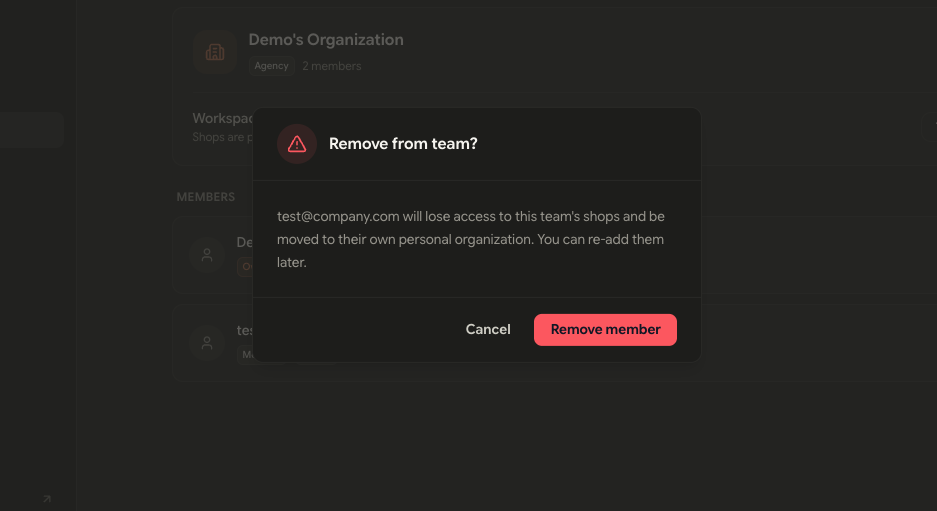
You can't suspend or remove the last owner — an organization must always have one.