Campaign phases
Campaign phases is the simulator's smartest Sales forecast. A campaign isn't one flat burst — sales build up before it, spike during, and taper after. This mode splits those three stretches apart and learns how big each one is from your own past campaigns, so the estimate matches how your shop really behaves.
Pick it from Sales forecast in the inspector (nothing selected). It's optional — for a quick number, the simpler forecasts are fine.
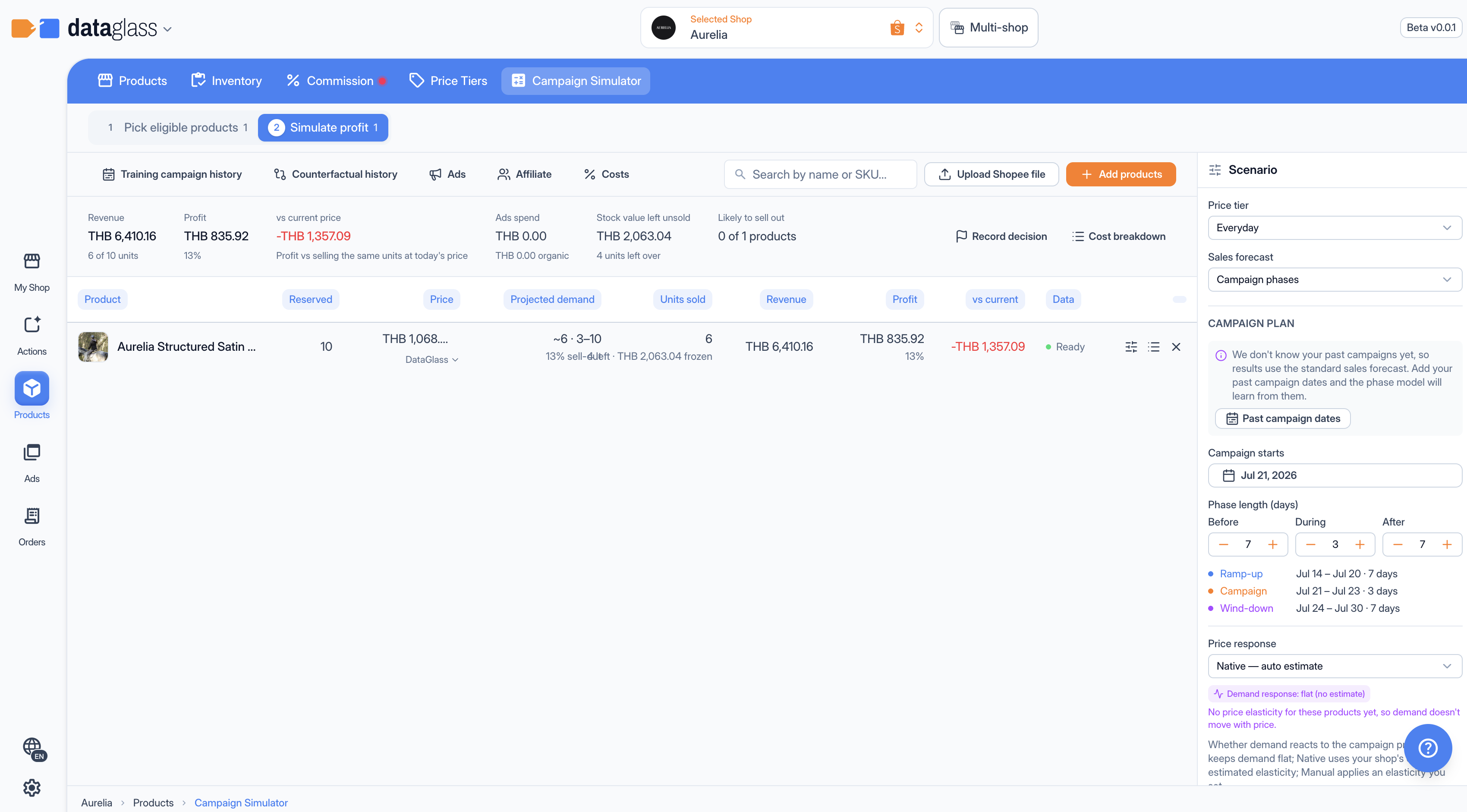 Campaign phases: set when the campaign runs.
Set the phase window
- Campaign starts — the day the campaign begins.
- Phase length (days) — three fields: Before (run-up, default 7), During (the campaign, default 3), After (tail, default 7).
A coloured bar shows the three stretches with their dates.
Teach it your past campaigns
The model gets smarter with real examples. Open the Past campaigns tool (toolbar) — the Past campaign dates button — and log a few campaigns you've already run:
- On the calendar, mark the campaign's days (paint Campaign first, then optionally Ramp-up / Wind-down).
- Set the Campaign type: Not sure / other, Double day (11.11, 12.12), Payday, or Flash sale.
- Name it (optional), keep Already happened on, and Add to list. Repeat per campaign, then Save periods — one save sends the whole list.
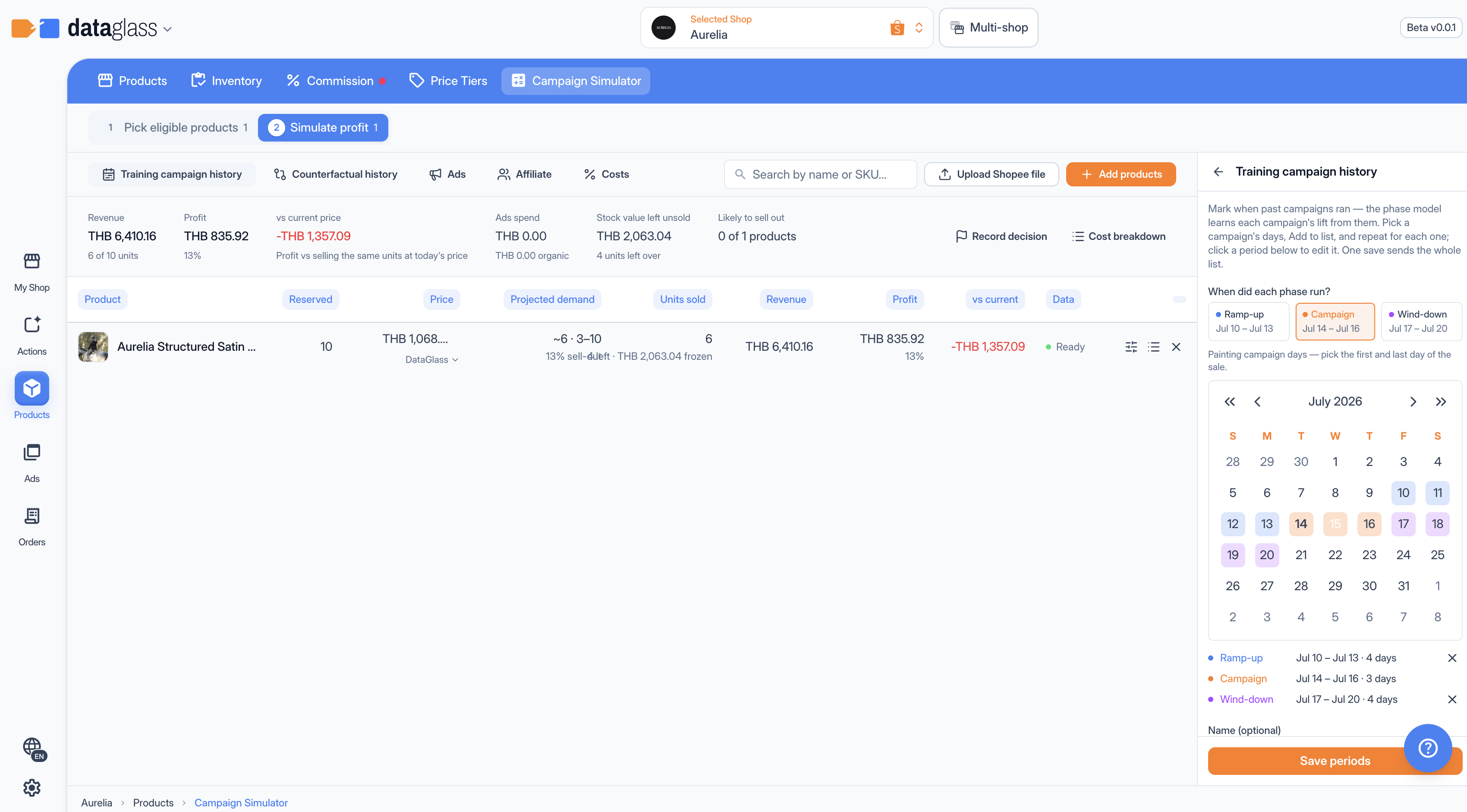 Past campaigns — mark past campaigns for the model to learn from.
Once it's learned you'll see "Phase lift: pre ×1.2 · campaign ×3.4 · post ×0.8" and "learned from 3 past periods". Read it plainly: during the campaign this shop sells about 3.4× a normal day, warms up 1.2× before, and runs a bit slow (0.8×) after.
Does a discount actually sell more?
Price response (Scenario panel) decides whether a lower price wins extra units, not just changes the math. It only affects the Campaign phases forecast:
- Off — price ignored — assume the discount doesn't change how many you sell.
- Native — auto estimate (default) — work it out from how your buyers reacted to past price changes. Leave it here — it's the smart default.
- Manual — set elasticity — you set one number, Elasticity (β). −1 roughly means a 1% discount lifts units 1%; more negative = more price-sensitive. Most sellers never touch this.
After each run a Demand response badge says where the estimate came from — your shop's own estimate, a trained model, your elasticity, or flat (no estimate). Flat means there wasn't enough price history, so a discount won't move the unit forecast that run.
The extra numbers you'll see
Campaign phases adds a per-product sell-out chance (how likely you run out of your reserved stock) and a low / likely / high demand range — so you see the spread, not just one hopeful number. With a baseline set, rows also show "+N vs no campaign" (see Counterfactual).