Commission
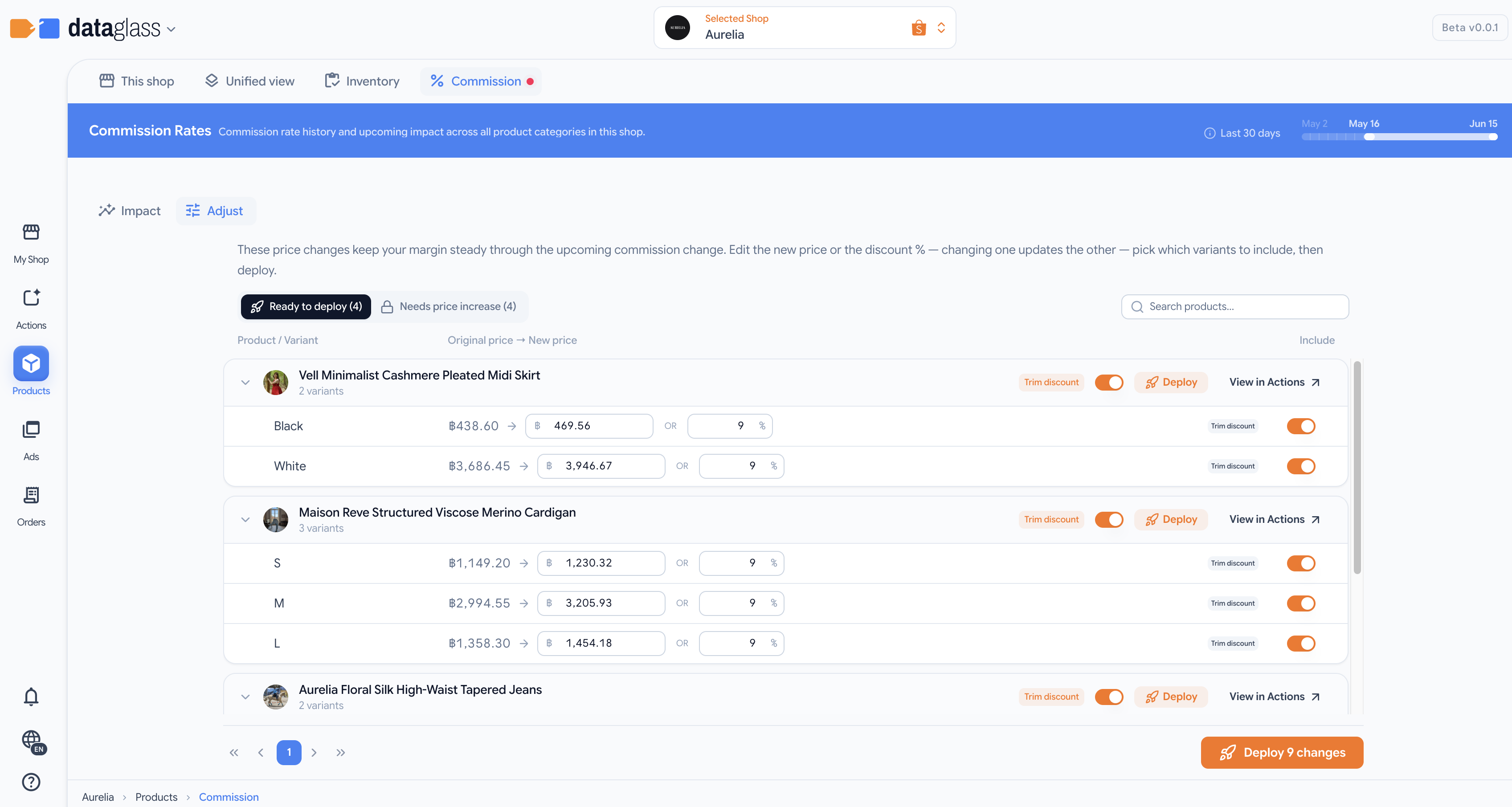
Commission shows the fee structure the marketplace charges — seller class, current rates by category, and upcoming changes — so you understand the real cost of selling. When commission rises, the commission-adjust tool deploys discounts to protect your margins.
How to use it
- View the commission rate chart — your seller class and current rates by category.
- See the treemap — a visual breakdown of how much each product costs in absolute commission fees.
- Monitor the change banner — if the marketplace announces rate increases, this shows the impact on each affected product.
- Deploy commission-adjust — select products impacted by rate changes and deploy margin-protecting discounts, or price raises (handled via the Actions board for whitelist-safe deployment).
Recommendation settings
The Settings menu on the Adjust price tab controls what the rebuilt price changes hold for every product, then rescans the upcoming commission change:
- What to protect — Profit per unit (default) keeps each product earning the same amount per item as today. Margin % holds a profit-margin percentage instead: either keep current margins (each product maintains the margin it earns now) or aim for a target margin (every product is priced to reach the same margin %, capped at 80% — very high targets can be unreachable and produce no recommendations).
- Advanced tuning — the discount-cut cutoff that routes a product to a price increase, and the buffer discount kept visible on a raise.
Save & rescan rebuilds the pending recommendations with the new settings and saves them as the shop's defaults, so future automatic scans keep using them. Each Action card shows a badge for the setting it was generated with — Protects profit/unit or Targets 30% margin — and in target mode the margin shown is the target itself.
Price-tier impact
Each variant on the Adjust price tab has a price-tier impact toggle that opens a three-column comparison of your price tiers, so you can see how the commission change moves each tier before you deploy:
- Today — your tiers at the current commission rate.
- If you do nothing — the same prices at the new rate, showing which tiers erode.
- After applying — your tiers once the recommended change lands, holding your configured tier rates.
A tier that falls below the 5% profit floor is flagged. A fixed-price tier still flagged in the After applying column can't be rescued by this change — set a fresh price for it on the Pricing page's Price Tiers tab. The toggle turns amber when a variant carries any such flag.
When changes go live
When you deploy, choose when the change reaches the marketplace:
- On the rate-change date (default) — stages the change and deploys it automatically the night the new commission rate lands.
- Now — deploys to the marketplace right away, so you get ahead of the change.
- Pick a date — stages the change until a date you choose, any day up to when the recommendation expires. Deploying after the rate-change date lets your margin erode in between, so the picker warns you.
Promotion locks
Shopee won't let you change a variant's price while it's in an ongoing or upcoming Platform Exclusive Price or Flash Sale — a price update would be rejected. (Your own seller discounts don't lock the price.)
The tool checks this for you:
- A banner at the top of the Adjust price list collapses everything into one answer: the single window when all the products on the page can be adjusted (e.g. Aug 5 – Oct 3) — or, if no single window fits them all because they're locked at different times, it tells you to deploy per product instead.
- Products locked right now show a Locked badge in the list.
- On the Pick a date calendar, every day locked by a promotion is greyed out, so a scheduled date always lands in an open window — the exact open ranges are listed below the calendar.
- Deploying Now into an active lock still warns you, since a price update then would fail on those variants.
It's a heads-up, not a blocker: you can always deploy. Locked variants simply come back as per-item failures, and a scheduled deploy retries on its date.
Why this matters
Commission is a hidden leak if you don't factor it into every price. Rates change quarterly and vary by seller class and category. The commission-adjust tool auto-deploys discounts that hold your margin steady when rates rise.